
Team
Invite teammates, assign roles, and control who can see contact phone numbers
Manage who has access to your organization, and what they can do, from Settings → Team.
Team invites aren't available on a personal workspace (one created by signing up with a personal email domain). Sign up with a work email to create a company workspace first.
Roles#
Each member has exactly one role, which determines what they can do:
| Role | Can do |
|---|---|
| Owner | Everything, including transferring ownership. There is exactly one owner per organization |
| Admin | Everything except being the sole owner-transfer target |
| Member | Full operational access — voice agents, journeys, contacts, campaigns, reports. No billing, no configuration (telephony, integrations, API keys), no member management |
| Editor | Voice agents, journeys, and contacts. No campaigns, billing, config, or member management |
| Viewer | Read-only: dashboard and per-agent reports, including downloading them |
| Finance | Plans, invoices, and payment — nothing operational |
Only an Owner or Admin can invite members, change roles, or remove members. Changing another admin's role is restricted to the Owner — an Admin can't demote or reassign a fellow Admin.
Inviting a teammate#
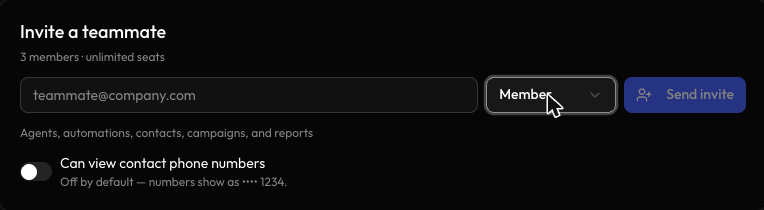
- Enter their email address, pick a role, and optionally toggle Can view contact phone numbers (see below).
- Click Send invite. They receive an email with a link to accept.
- While their invite is pending, you can resend it or revoke it from the Members list.
Seats are a plan entitlement — inviting past your plan's limit prompts you to upgrade first. Admins always get phone number visibility regardless of the toggle; it only matters for the other roles.
Contact phone number visibility#
Every member has a Can view contact phone numbers toggle, independent of their role. Off by default, a member without it sees phone numbers masked (e.g. •••• 1234) everywhere in the dashboard; toggling it on shows the number in full. This is useful for giving someone operational access (as a Member or Editor) without exposing your full contact list's phone numbers.
Changing a role or removing a member#
From the Members list, click a member's role badge to change it, or use the row actions to remove them. Removing a member revokes their access immediately.
Transferring ownership#
Assigning a member the Owner role transfers ownership to them and demotes the current owner to Admin. Only the current owner can do this — it isn't available as an option from the regular role dropdown, which only offers Admin, Member, Editor, Viewer, and Finance.