
Twilio Integration
Configure Twilio for voice communication in Lemu AI
Overview#
Twilio is a cloud communications platform that enables voice calling, messaging, and video capabilities. Lemu AI's Twilio integration provides seamless connectivity for your voice agents.
Prerequisites#
Before setting up Twilio integration, you'll need:
- A Twilio account
- Account SID and Auth Token from your Twilio Console
- At least one Twilio phone number
- Lemu AI instance running and accessible
Video Tutorial#
Watch this step-by-step guide to set up Twilio with Lemu AI:
Configuration#
Step 1: Get Twilio Credentials#
- Log in to your Twilio Console
- Find your Account SID and Auth Token on the dashboard
- Navigate to Phone Numbers → Manage → Active Numbers
- Copy your phone number(s)
Step 2: Configure in Lemu AI#
- Go to Configuration in the sidebar → Telephony tab
- Watch the Twilio setup video tutorial above for detailed guidance
- Select Twilio as your provider
4. Enter your credentials:
- Account SID
- Auth Token
- From Phone Number (with country code, e.g., +1234567890)
- Click Save Configuration
Step 3: Test Your Configuration#
- Create a test workflow
- Click "Test Call" to verify connection
- Check call logs for successful connection
Inbound Calling Setup#
To enable inbound calling with Twilio:
- Complete Telephony Configuration: Use the same Configuration steps above
- Get Your Workflow Webhook URL: Find your workflow ID and construct the webhook URL as:
https://app.lemuai.com/api/v1/telephony/inbound/{workflow_id}
Configure Webhook in Twilio Console#
-
Configure Phone Number Webhook:
- Go to Phone Numbers → Manage → Active Numbers in Twilio Console
- Click on the phone number you want to use for inbound calls
- In the "Voice Configuration" section:
- Set Webhook to:
https://app.lemuai.com/api/v1/telephony/inbound/{workflow_id} - Set HTTP Method to:
POST
- Set Webhook to:
- Click Save Configuration
Replace
{workflow_id}with your actual workflow ID.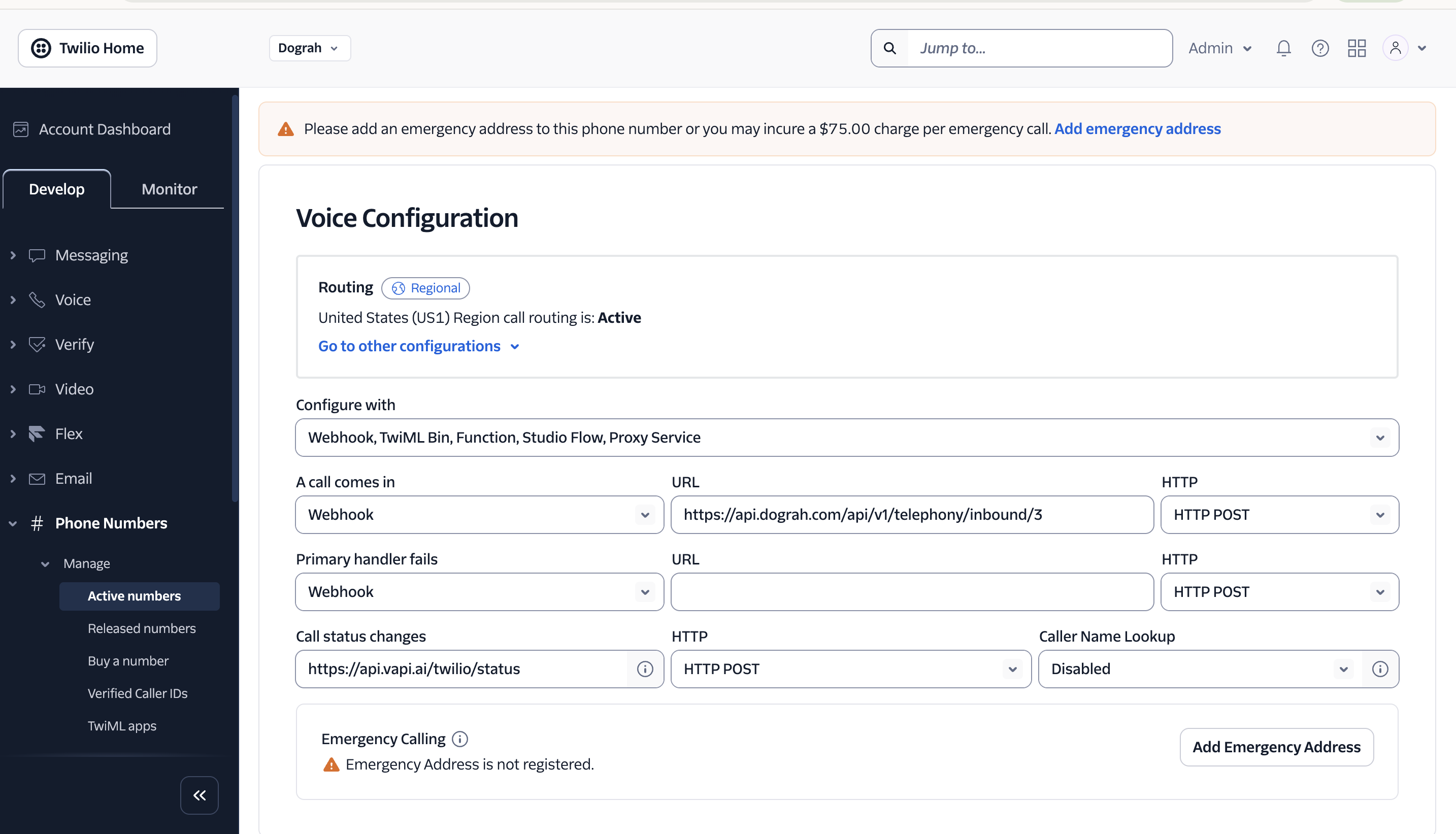
-
Verify Setup:
- Ensure your Lemu AI instance is publicly accessible
- Verify any firewalls allow Twilio's IP ranges
Test Inbound Calling#
- Call your configured Twilio phone number from another phone
- Verify your Lemu AI voice agent answers and responds
- Check call logs in both Lemu AI dashboard and Twilio Console
Troubleshooting#
Best Practices#
- Store credentials securely in the database
- Test your configuration with a single call before running campaigns
- Monitor Twilio Console for usage and billing