
Jira
Create a Jira issue as a step in a journey
The Jira integration lets a journey create an issue in your Jira site — for example, opening a support ticket when a call reveals a problem, or a follow-up task for the sales team after a qualifying call.
Connecting#
-
On Settings → Integrations, click Connect on the Jira card.
-
Unlike the other providers, Jira asks for your site's subdomain first: enter the part before
.atlassian.net(e.g.acmeif your site isacme.atlassian.net), then Continue.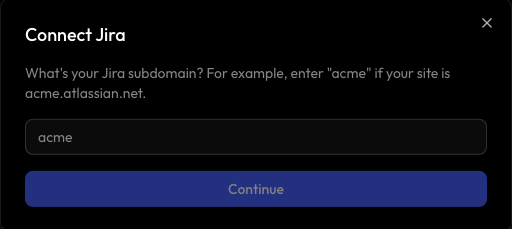
-
A popup opens Atlassian's OAuth consent screen. Sign in and approve access to the site.
-
Once approved, the card moves to Connected.
Using it in a journey#
Once connected, add a Jira node to any journey's canvas (from the Add New Node panel, under Actions). It has four fields:
| Field | Purpose |
|---|---|
project_key | Required. The short project key shown in issue IDs, e.g. SUP for tickets like SUP-123 |
summary | Required. The issue title |
issue_type | Required. Must be valid for that project, e.g. Task, Bug, Story |
description | Optional. The issue body |
project_key and issue_type are both searchable dropdowns, backed by a live list of projects and issue types from the connected Jira site (sub-task types are excluded, since those need a parent issue and can't be created from this node).
For example, project_key: SUP, summary: Follow up with {{context.contact_name}}, issue_type: Task, description: Call outcome: {{context.call_outcome}} — all fields support {{context.*}} templates.
The node routes to success or error depending on whether the issue was created. On success, its output includes the project key and Jira's response data (including the new issue's key), so a later node in the journey can reference it.
Disconnecting#
Click Disconnect on the Jira card in Settings → Integrations. This revokes Lemu's access to the site immediately — any journey with an unconfigured Jira node will fail at that node the next time it runs until you reconnect.