
Slack
Send a message to a Slack channel as a step in a journey
The Slack integration lets a journey post a message to a channel in your workspace — for example, notifying a sales channel when a call qualifies a lead, or flagging a failed payment reminder to an ops channel.
Connecting#
- On Settings → Integrations, click Connect on the Slack card.
- A popup opens Slack's OAuth consent screen. Choose the workspace and approve the requested permissions (posting messages and listing channels).
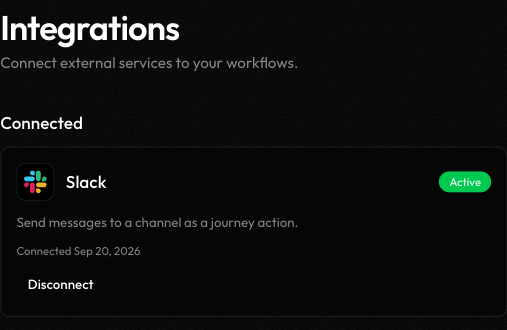
- Once approved, the card moves to Connected and shows Active with the date you connected.
Only one Slack workspace can be connected per organization at a time. To switch workspaces, Disconnect the current one first, then connect the new one.
Using it in a journey#
Once connected, add a Slack node to any journey's canvas (from the Add New Node panel, under Actions). It has two fields:
| Field | Purpose |
|---|---|
channel | A channel name (e.g. #general) or channel ID. Searchable dropdown, backed by a live list of channels in the connected workspace |
message | The message text. Supports {{context.*}} templates and Markdown formatting |
For example, a message like New lead: {{context.contact_name}} ({{context.phone}}) — qualified for demo sent to #sales-leads after a qualifying call.
The node routes to success or error depending on whether the message sent. On success, its output includes the channel and Slack's response data, so a later node in the journey can reference it.
Disconnecting#
Click Disconnect on the Slack card in Settings → Integrations. This revokes Lemu's access to the workspace immediately — any journey with an unconfigured Slack node will fail at that node the next time it runs until you reconnect.