
Google Calendar
Book a meeting with a Google Meet link as a step in a journey
The Google Calendar integration lets a journey create a calendar event with a Google Meet link — for example, booking a demo automatically once a call confirms a time slot.
Connecting#
-
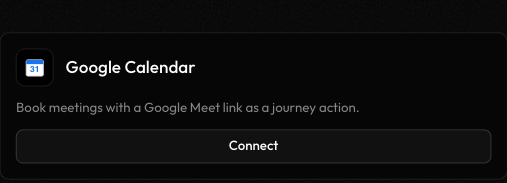
On Settings → Integrations, click Connect on the Google Calendar card.
-
A popup opens Google's OAuth consent screen. Sign in and approve calendar access.
-
Once approved, the card moves to Connected.
Using it in a journey#
Once connected, add a Google Calendar node to any journey's canvas (from the Add New Node panel, under Actions). It has six fields:
| Field | Purpose |
|---|---|
summary | Required. The event title |
start_datetime | Required. ISO 8601, e.g. 2026-09-20T15:00:00 |
end_datetime | Optional. ISO 8601; a default duration applies if omitted |
attendees | Optional. Comma-separated email addresses |
description | Optional. The event description |
location | Optional. The event location |
For example, summary: Onboarding call with {{context.contact_name}}, start_datetime: {{context.slot_start}}, end_datetime: {{context.slot_end}}, attendees: {{context.contact_email}}, sales@yourcompany.com — all fields support {{context.*}} templates.
This node always creates a Google Meet link on the connected account's primary calendar — it's built for booking a meeting, not just blocking time on a calendar.
The node routes to success or error depending on whether the event was created. On success, its output includes the event summary and Google's response data (including the Meet link), so a later node in the journey can reference it — for example, to include the link in a follow-up WhatsApp message.
Disconnecting#
Click Disconnect on the Google Calendar card in Settings → Integrations. This revokes Lemu's access immediately — any journey with an unconfigured Google Calendar node will fail at that node the next time it runs until you reconnect.